
Join the RabiDash test on Google Play: every step with pictures
Three things with the same Google account: join the RabiDash Testers group, tap Become a tester on Google Play, then install RabiDash. Every step has a picture with the button circled.
Step 1: Open the group page and tap Join group
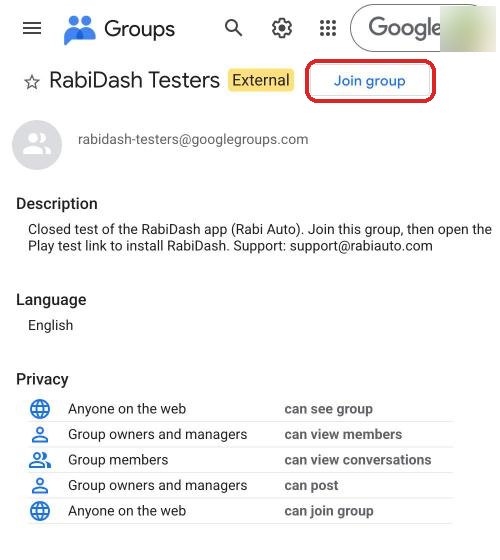
On the Beta page of your Rabi account, tap step a (Join the Google group). The RabiDash Testers group page opens; the Join group button sits right next to the group name, at the top. Not signed in to Google yet? Tap Sign in at the top first.
Step 2: Confirm Join group
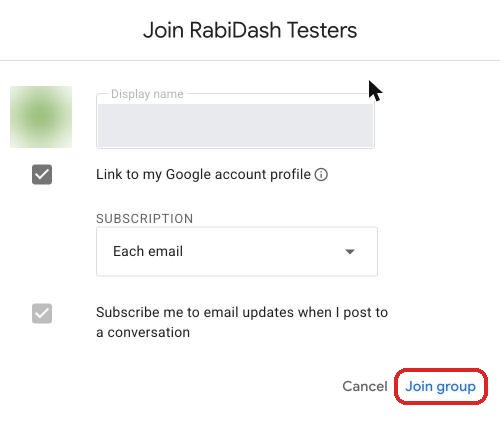
A box opens. Leave everything as it is and tap Join group at the bottom right. When the Join group button next to the group name is gone, you are in the group.
Step 3: Tap Become a tester on Google Play
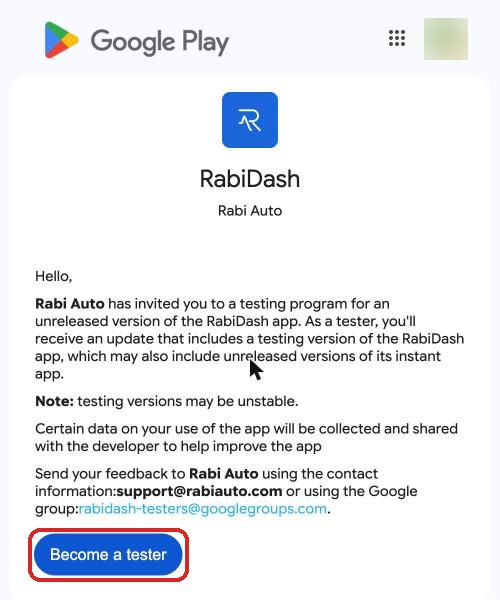
Go back to the Beta page and tap step b (Join on Play). Google Play shows the invitation to the RabiDash test; tap Become a tester.
Step 4: You are a tester
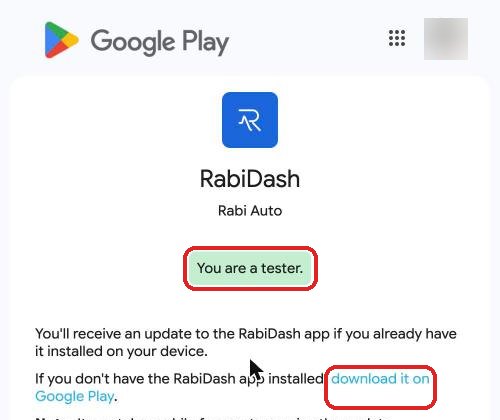
The page says You are a tester. Tap download it on Google Play, or step c on the Beta page.
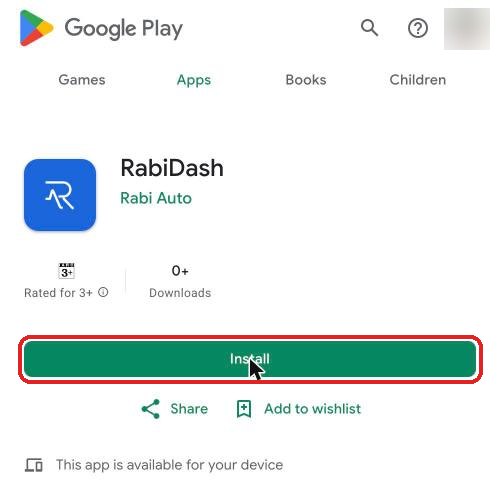
Step 5: Install RabiDash
The RabiDash page on Google Play opens; tap Install. Do this on your Android phone, with the same Google account you used in steps 1 and 3.
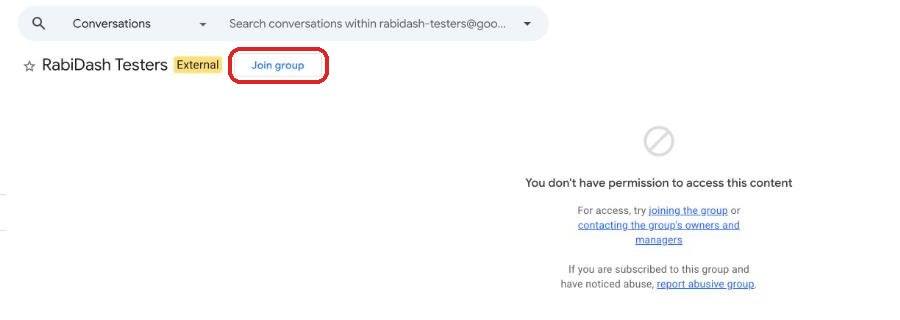
If you see “You don't have permission to access this content”
You are on the group's conversations page and have not joined yet. Tap Join group at the top, right next to the group name, then go on with step 2.
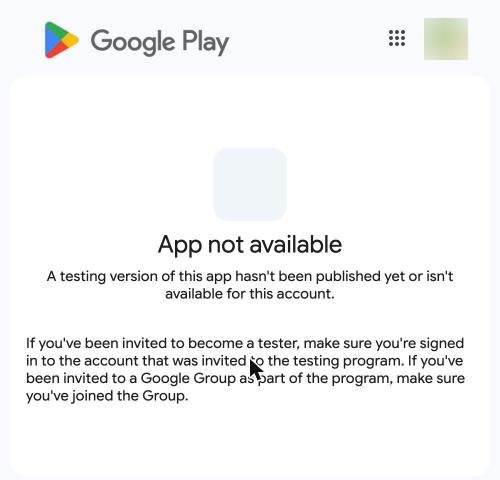
If Google Play says “App not available”
The Google account you are using is not in the group yet. Check you did steps 1–2 with this same account (its picture is at the top right), then open step b again.
The RabiDash test on Google Play is open only to Google accounts in the RabiDash Testers group. Do the three things in this guide with the same Google account — the one signed in to Play Store on your phone.
The link for each step is on the Beta page of your Rabi account, under RabiDash (steps a · b · c). Premium is optional during the beta; a purchase in the test version is a real Google Play payment, and the plan stays on your Rabi account when the app is released.