Poradnik 6 z 6 · Kroki: 8
RabiDash BM Lite won't connect to the display: check in this order
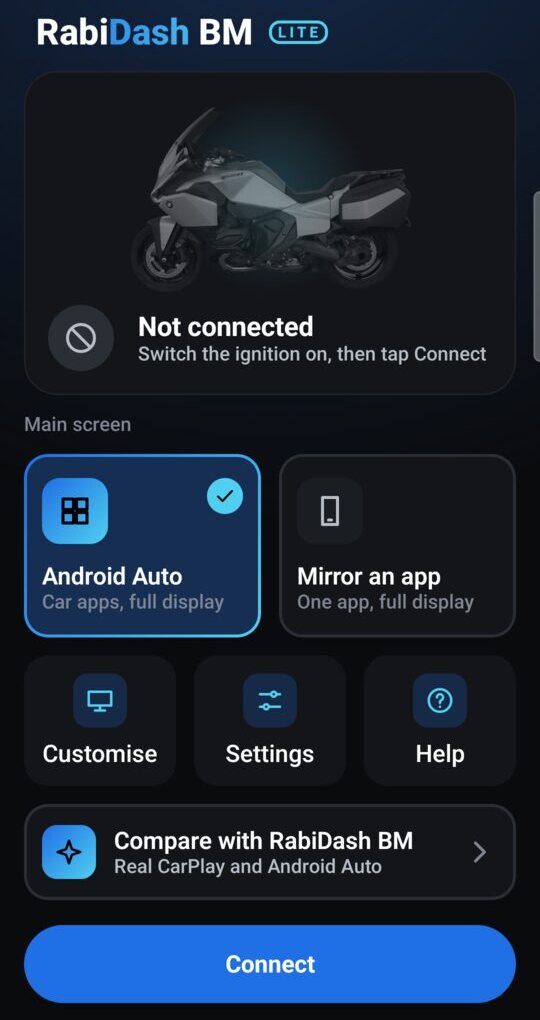
Home says Connection lost, or the bike's display shows no picture. Check each step in turn, simplest first: the ignition, the BMW app, Bluetooth and Wi-Fi, pairing again.
Switch the ignition on again
The display only looks for your phone for about a minute after you switch the ignition on. If the phone wasn't ready then, switch the ignition off and on again, and keep the phone's Bluetooth on. The app waits and connects by itself.
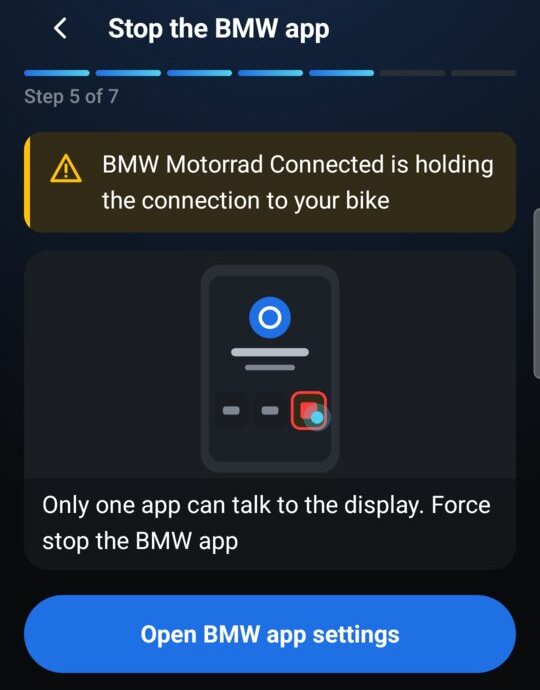
Stop the BMW app
If Home says The BMW app took the connection, BMW Motorrad Connected is holding the display. Tap the button on that card, force stop the BMW app, then switch the ignition on again. The display talks to one app at a time.
Turn on Bluetooth, Wi-Fi and location
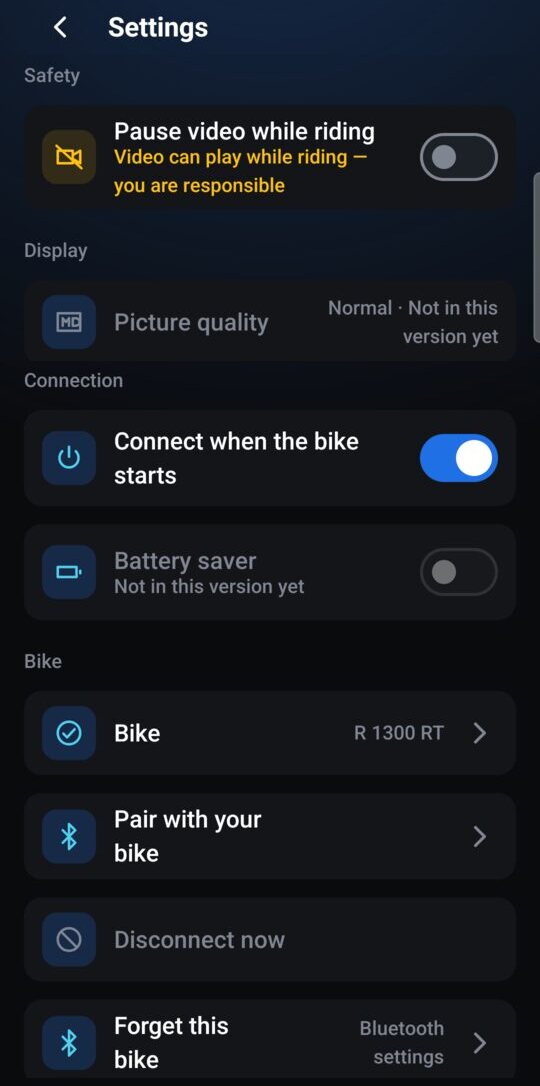
The app reaches the bike over Bluetooth first, then joins the display's own Wi-Fi to send the picture. Turn on your phone's Bluetooth and Wi-Fi; no other Wi-Fi network is needed. On Android 10, 11 and 12, also turn on Location. If the app's notification stops at Could not join the display's Wi-Fi, this is the first step to check.
Ignition off for 10 seconds
If it still can't join the display's Wi-Fi, or the display is black: switch the ignition off, wait 10 seconds, switch it on, then open the app again. If the bike is also paired with another phone nearby, turn that phone's Bluetooth off while you try.
The display did not accept the phone
If the app says The display did not accept the phone, it kept asking for 5 minutes and the display didn't answer. Open the Bluetooth menu on the display and reconnect to your phone. The bike allows only a few reconnects per ride; if you've reconnected several times, switch the bike off fully and on again.
Pair with the bike again
If Home says Not paired with your bike, the Bluetooth pairing was removed on the phone. Tap Fix the connection and pair again with the bike parked, as in the guide Connecting RabiDash BM Lite to your BMW display for the first time.
Android Auto isn't ready
If Home says Android Auto isn't ready, go to phone Settings › Apps › Android Auto › Force stop, then open Android Auto and choose Start head unit server in the ⋮ menu. You always need to start it again after the phone restarts.
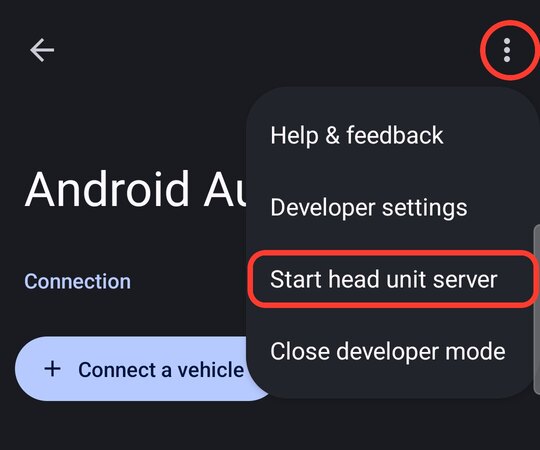
Menu ⋮ › Start head unit server 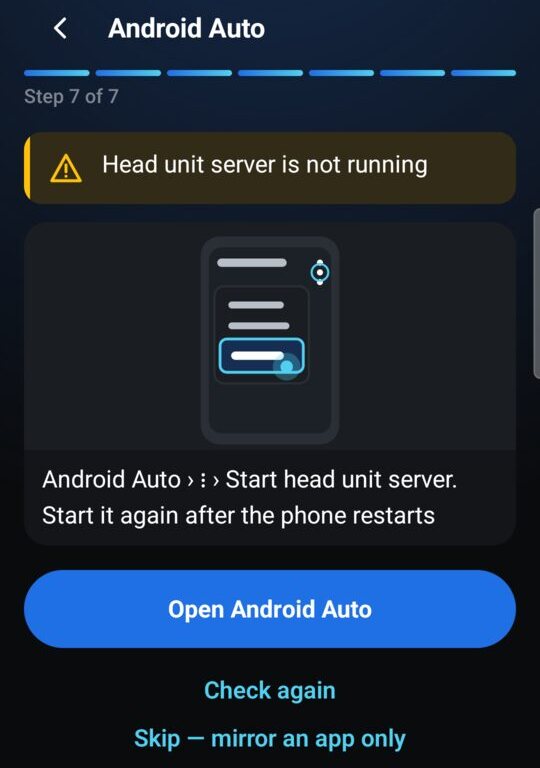
Send us a report
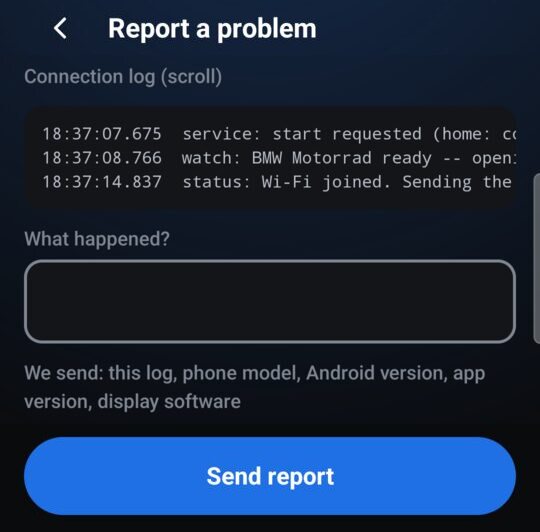
Still not working? In the app, open Help › Report a problem, write briefly what happened and send it. The report includes the connection log, your phone model, Android version, app version and the display software. The app shows a report number: quote it when you contact us.
Most failed connections come down to three things: missing the first minute after the ignition goes on, the BMW app holding the display, or the phone not joining the display's Wi-Fi. Check them in the order above before pairing again from scratch.
Want to try the app without the bike? Open Help › Bike simulator.