คู่มือ 1 จาก 6 · 6 ขั้นตอน
Getting started with RabiDash BM Lite: sign up, download and install
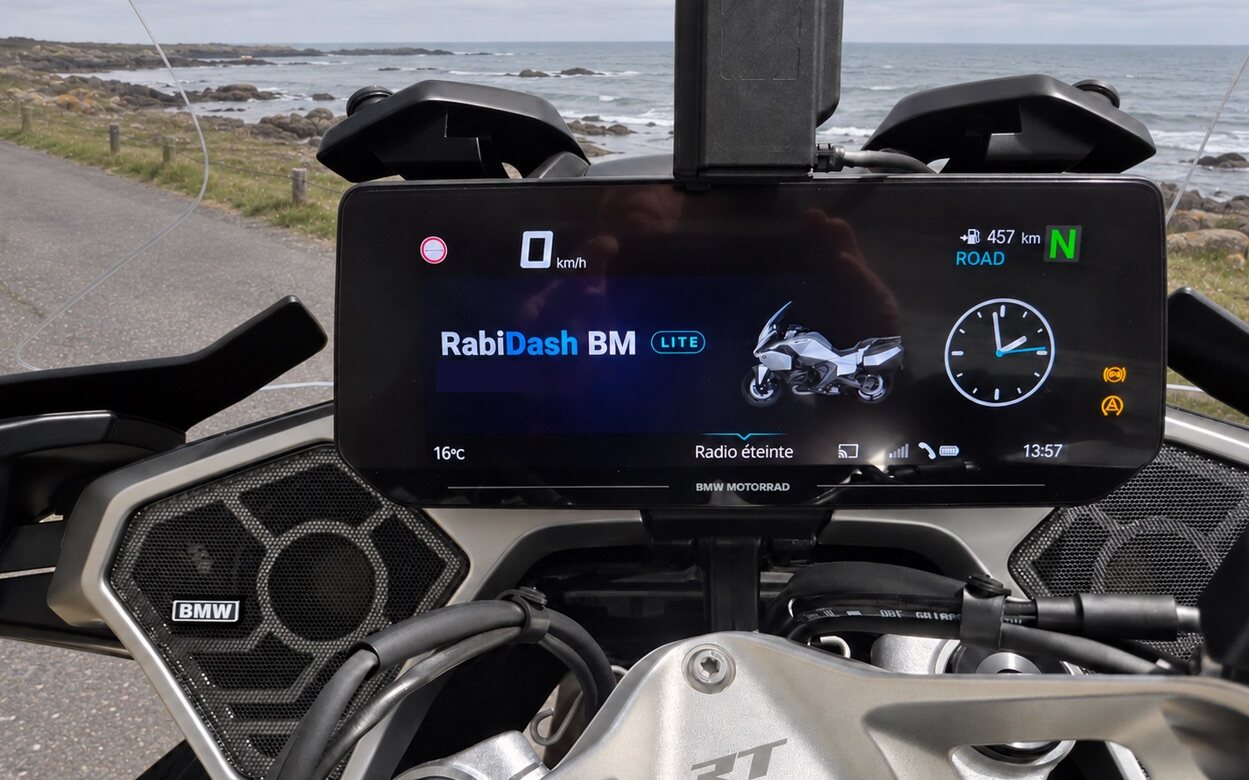
RabiDash BM Lite is a free Android app that puts Android Auto, or an app from your phone, on the original 10.25-inch display of your BMW. The steps from creating an account to opening the app for the first time.
Check your bike and phone
RabiDash BM Lite is for BMW models with the 10.25-inch TFT display: R 1300 RT, R 1250 RT (2021–2024), K 1600 GT, GTL, B and Grand America (from 2022), R 18 Transcontinental, R 18 B and CE 04 (from 2022). Your phone needs Android 10 or later, with Bluetooth and Wi-Fi Direct. Bikes with the 6.5-inch display, and iPhone users, are covered by RabiDash BM, not by Lite.
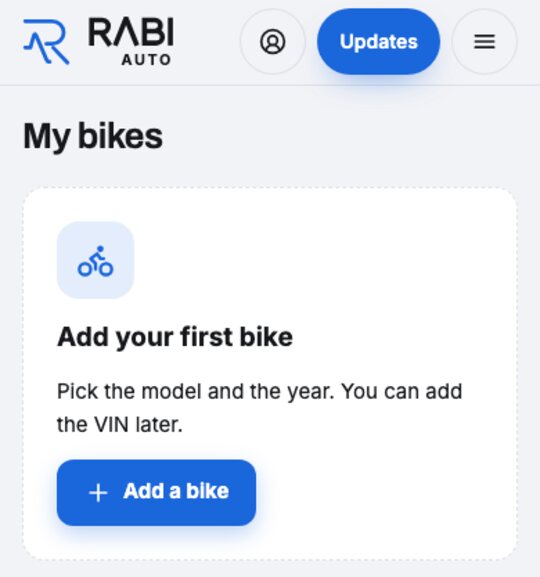
Create an account and add your bike
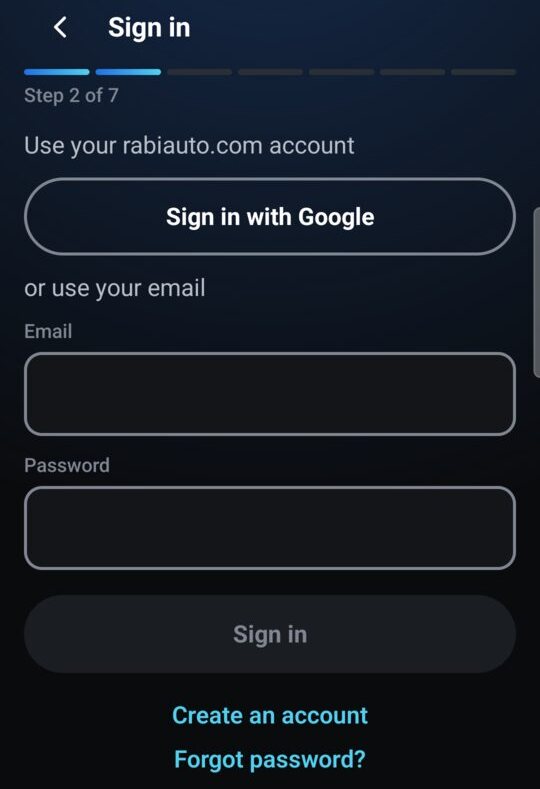
Create an account on rabiauto.com, with your email or your Google account. Open Bikes and add your bike: the beta sign-up needs to know what you ride.
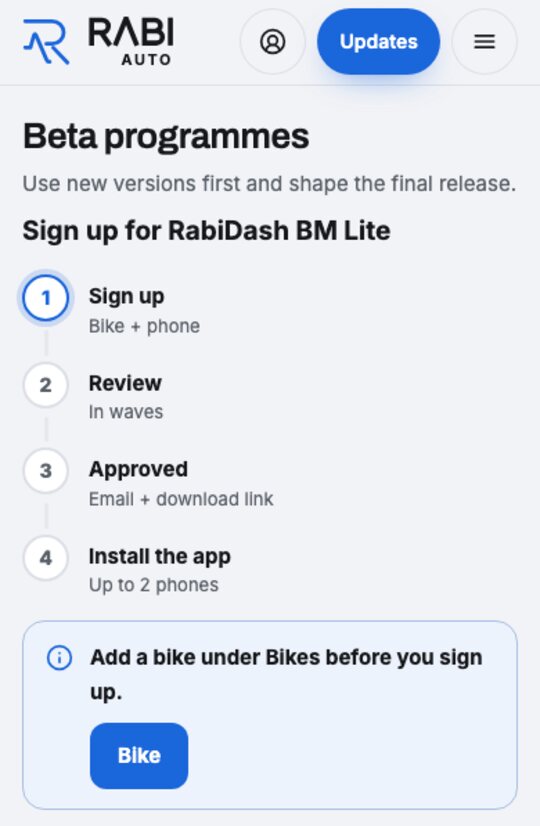
Join the beta programme
In your account, open the beta programme and choose RabiDash BM Lite. Your request goes through four steps: Apply, Review (in batches), Approved, Install the app. Once approved, you get an email with the way to the download page.
Download the APK
Open the Downloads page of your account on your Android phone and tap Download (Android). Each tap makes a new download link, valid for 10 minutes. If the browser asks whether to keep the file, keep it.
Install the app
Open the downloaded file. Android says it can't install apps from this source: tap Settings, turn on Allow permission, then go back and open the file again. Tap Install; Android may say installing this app isn't recommended, choose Install anyway. If Google Play Protect recommends a scan, tap Scan app, wait until it says the app looks safe, then install. Samsung phones: if Auto Blocker is on, turn it off in Settings › Security and privacy before installing.
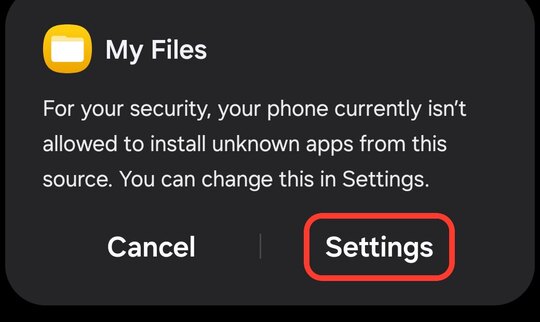
Android blocks installs from this source: tap Settings 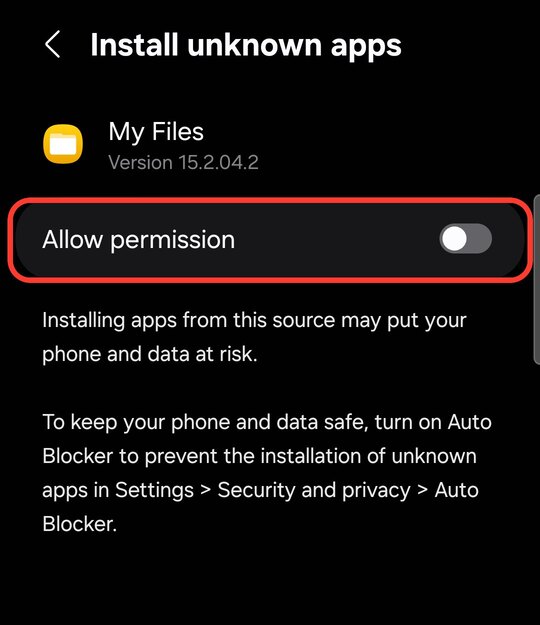
Turn on Allow permission 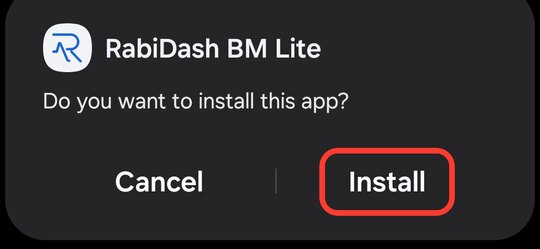
Install prompt: tap Install 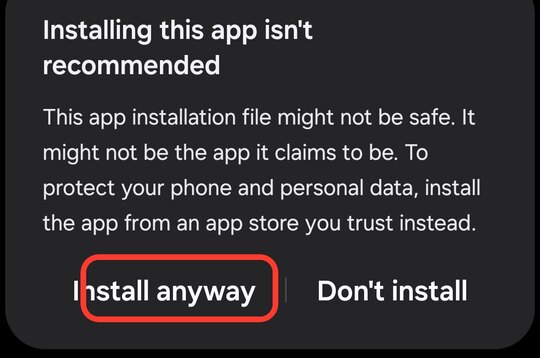
Not-recommended warning: tap Install anyway 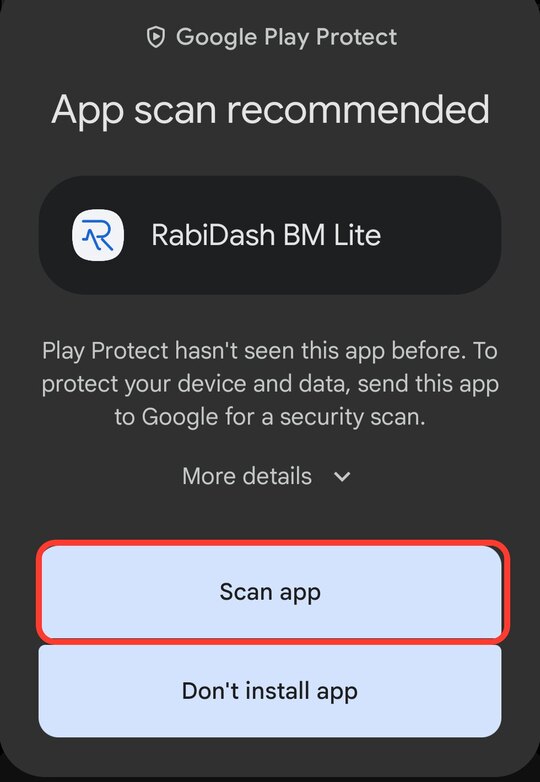
Google Play Protect: tap Scan app 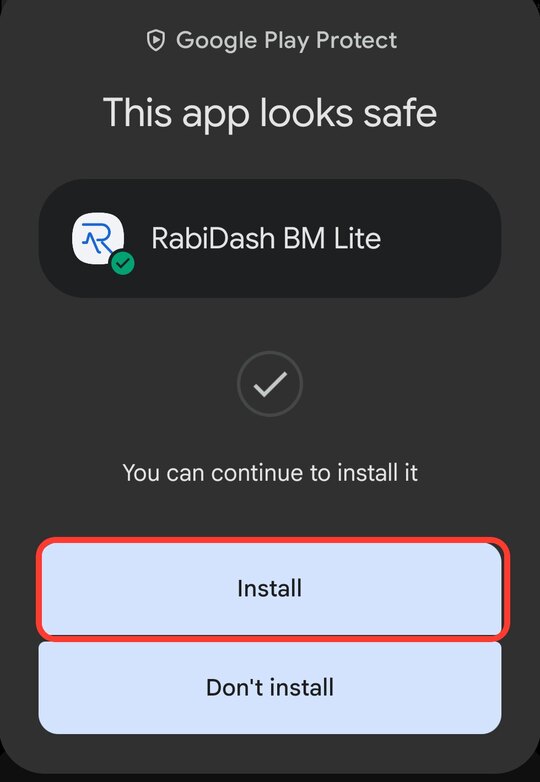
The app looks safe: tap Install Open the app and sign in
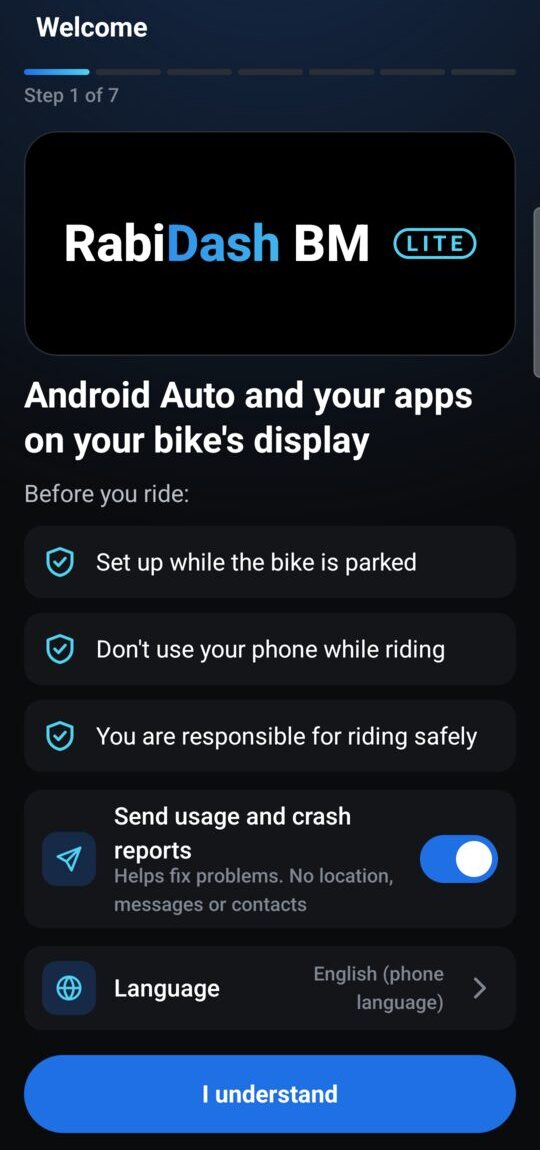
The Welcome screen lists three things before you ride: set up while the bike is parked, don't use your phone while riding, you are responsible for riding safely. Tap I understand, then sign in with the rabiauto.com account that was approved. Next come choosing your bike, the permissions and pairing with the bike: see the guide Connecting RabiDash BM Lite to your BMW display for the first time.
RabiDash BM Lite is a free beta: every feature is free, with no locks, no ads and no subscription. The app changes nothing on the bike, and the display keeps BMW's own software.
If your bike isn't in the list, choose My bike isn't listed on the bike screen and send your model and year. We'll let you know if it's supported.
Connecting RabiDash BM Lite to your BMW display for the first time